ID·WEAR
Manual
Main functions
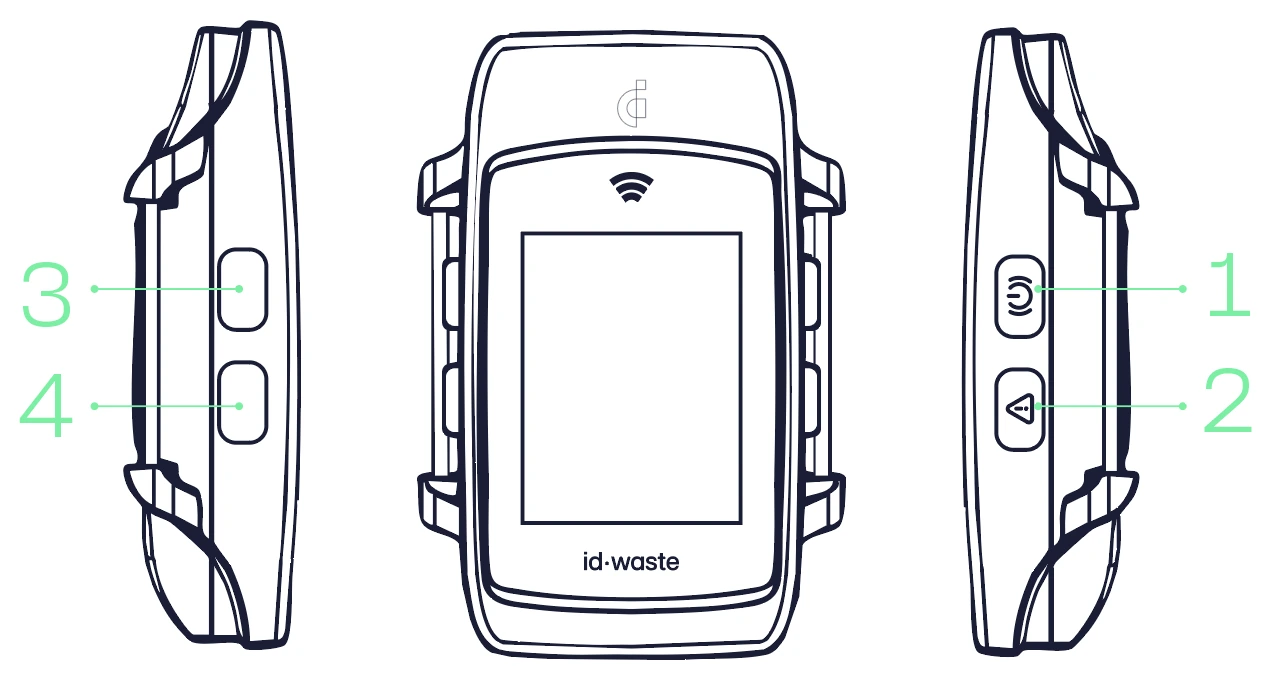
- 1
- Turns the RFID antenna on/off for TAG reading.
- A short press turns the antenna on/off to read RF tags.
- 2
- Report an incident:
- Short press to flag an incident linked to the TAG reading.
- Long press to enter a geo-incident.
- Report an incident:
- 3
- Long press to open the menu.
- In a data list:
- Short press to move up.
- Long press to select an option.
- 4
- Within a list of options:
- Short press to move down.
- Long press to go back or exit.
- Within a list of options:
Switching the device on and off
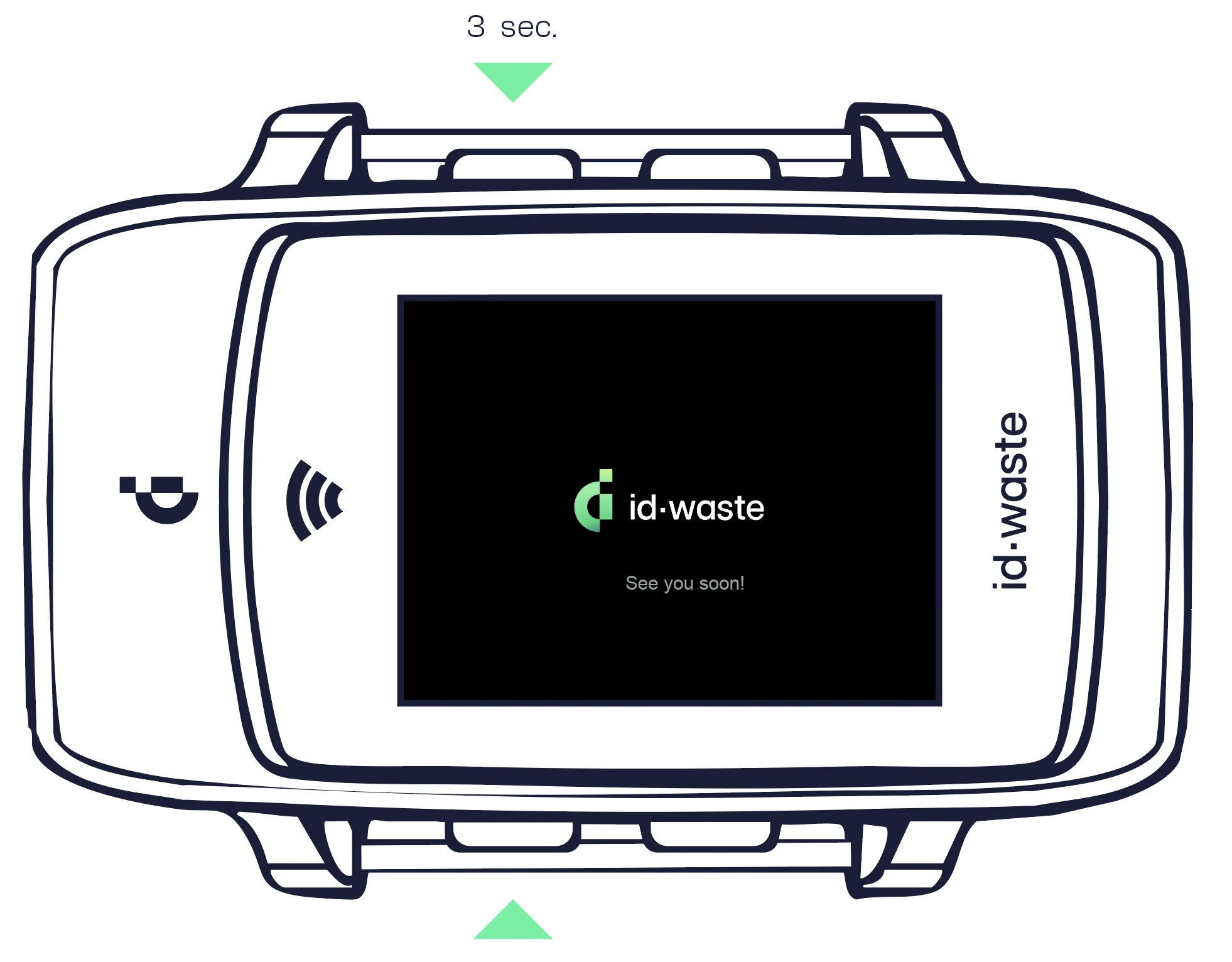
SWITCH ON: press button 1 for 3 seconds to switch the device on.
13 sec.
SWITCH OFF: press button 1 + button 3 at the same time for one second to switch the device off. Press button 1 for about 3 seconds to switch it back on.
1+3
Automatic screen switch-off: if the device detects no activity for 15 minutes, the screen switches off automatically. To reactivate it, briefly press any button.
Automatic device switch-off: the device switches off automatically after 30 minutes if no activity is detected.
Screen
 TimeDateRFID antenna LED onNumber of readings without incidentsMemory percentageReadings pending uploadCoverage
LTE data connection
No connectionBattery levelRFID antenna onGPS position fixedNumber of readings with incidents
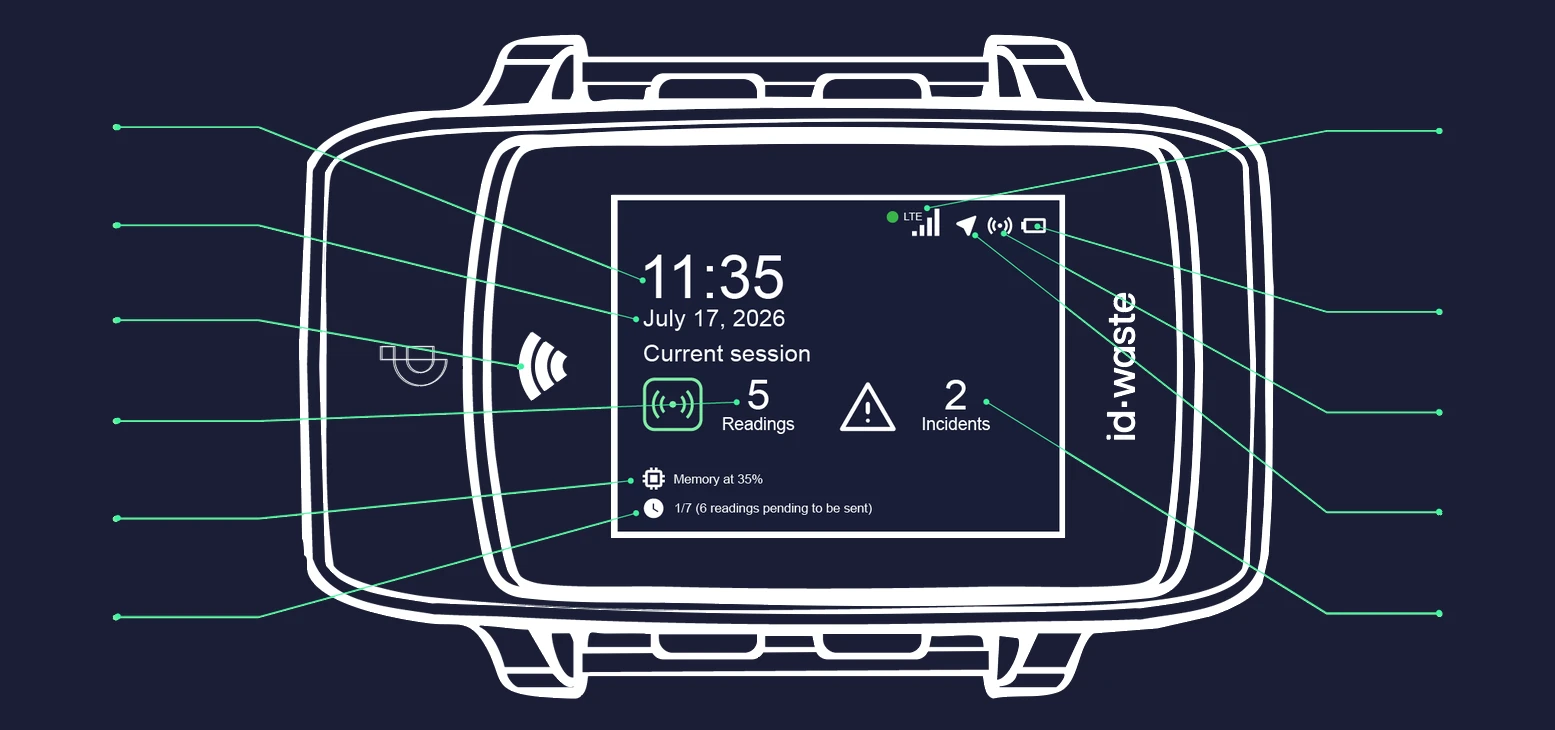 1234567891011
- 1. Time
- 2. Date
- 3. RFID antenna LED on
- 4. Number of readings without incidents
- 5. Memory percentage
- 6. Readings pending upload
- 7. Coverage
LTE data connection
No connection - 8. Battery level
- 9. RFID antenna on
- 10. GPS position fixed
- 11. Number of readings with incidents
Switching on the device
When the user presses button 1 on the ID·WEAR for 3 seconds, the device switches on and the main screen is displayed.
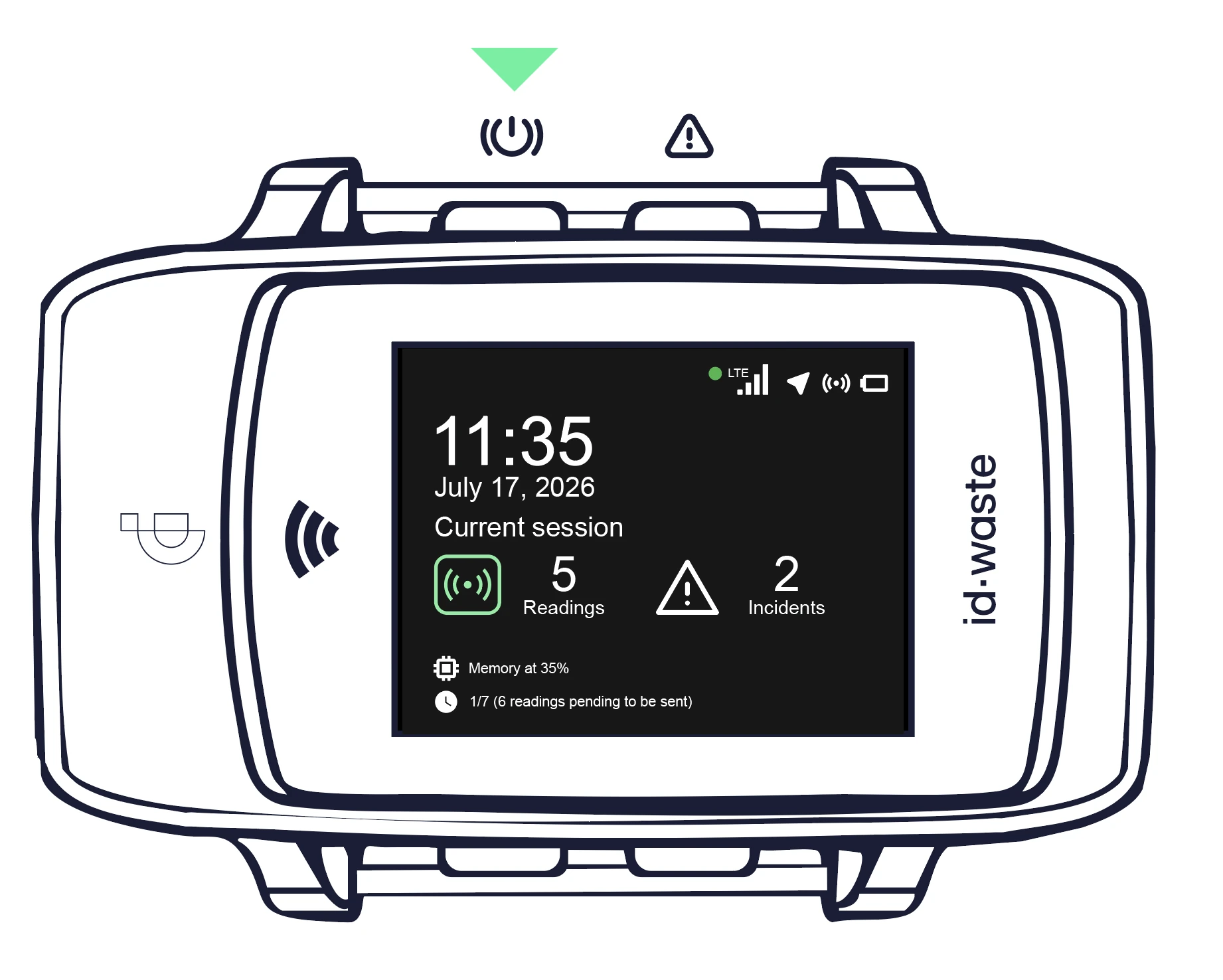
Main menu
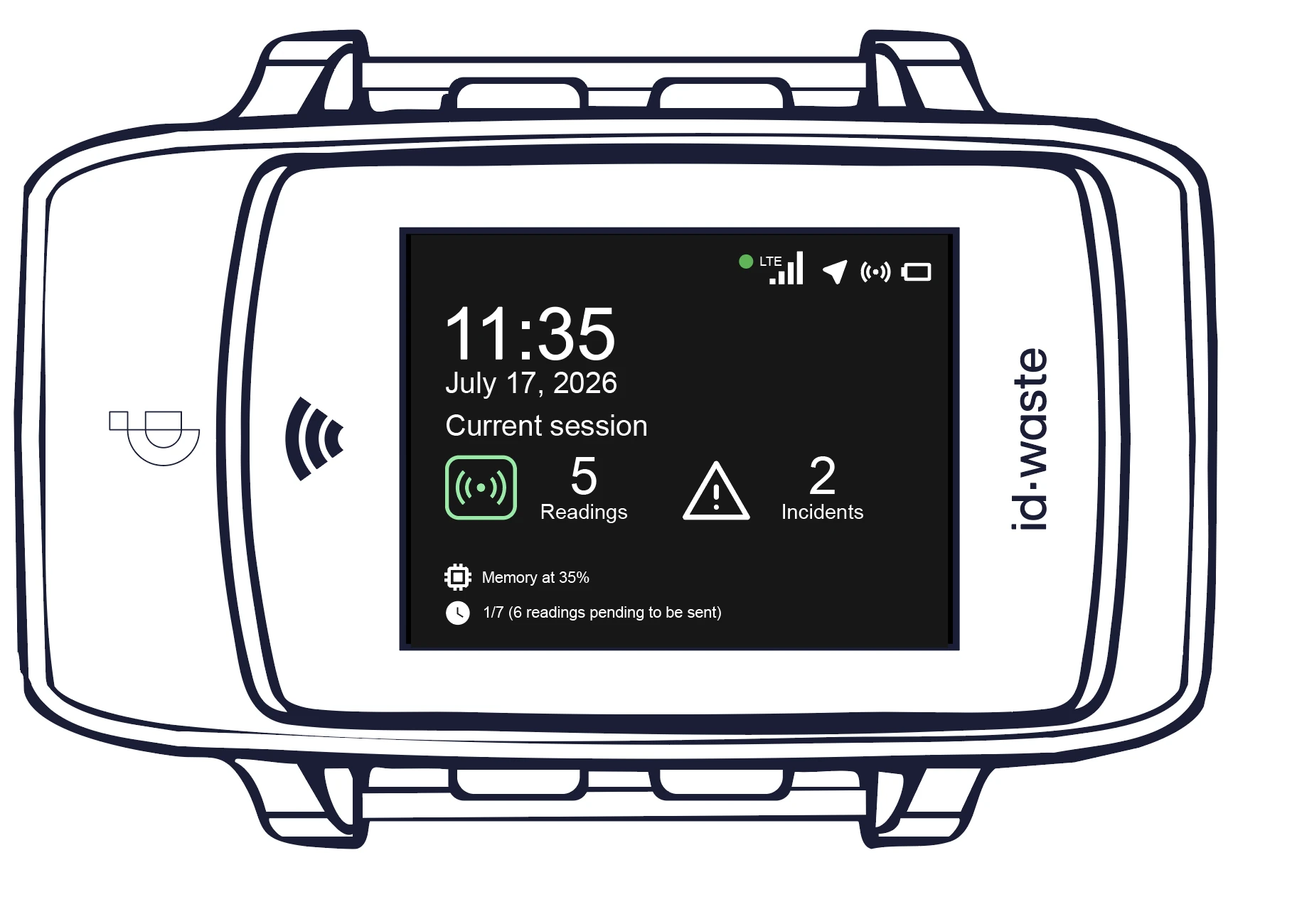
The main screen is structured in 3 blocks:
Top right: battery level, RFID antenna on or off, GPS and coverage level.
Centre: current date and time, number of readings without and with incidents.
Bottom: number of readings sent vs. the total number of readings taken.
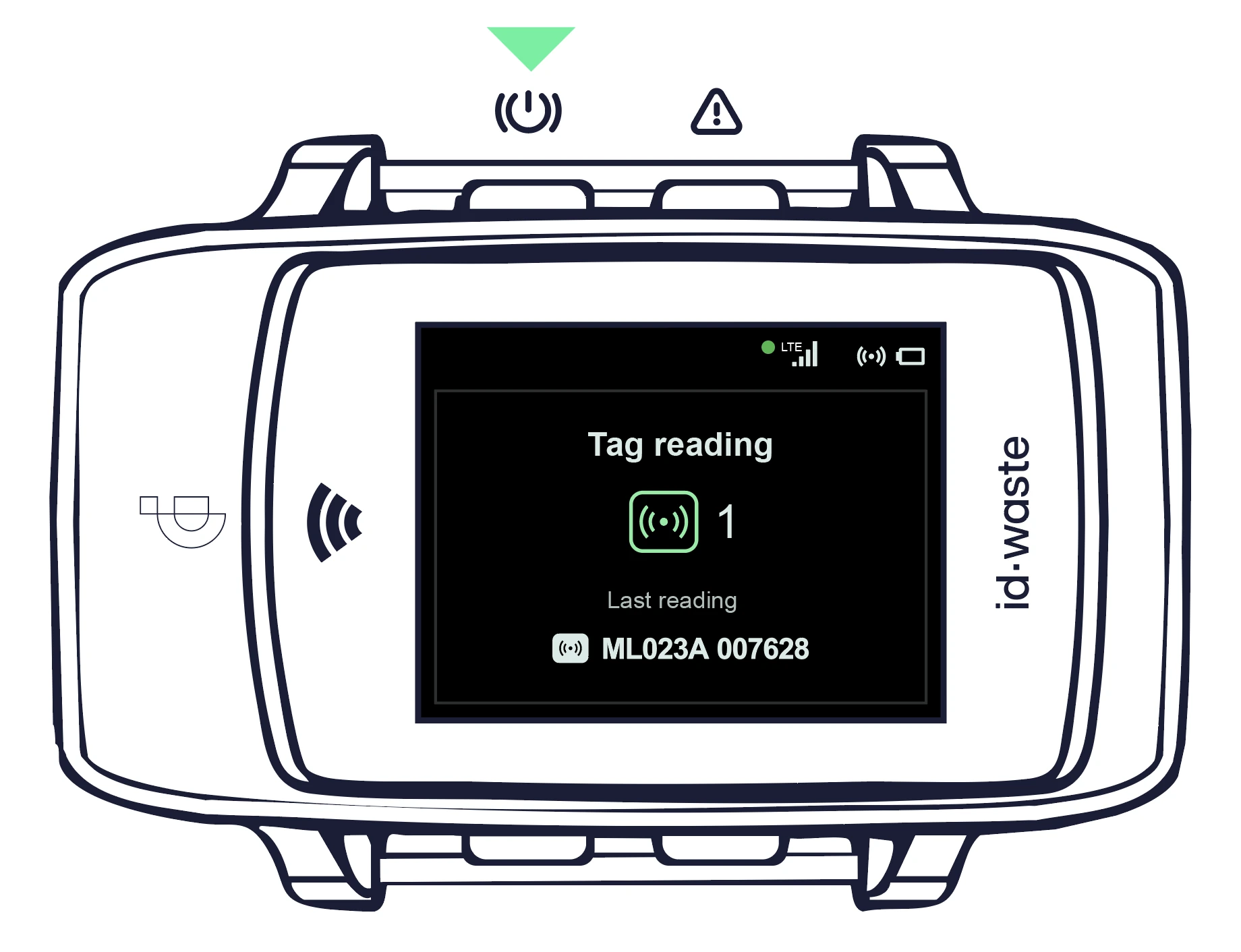
Tag reading
When the user briefly presses button 1 to activate the RF antenna and read RFID tags, the RFID icon appears in the top right corner of the screen and the indicator LED lights up. The RF tag reading screen also appears, indicating that the identification device is ready to read RF tags. The screen shows the code of the tag read together with a count of how many tags have been read.
The radio frequency (RF) antenna can be deactivated in two ways:
- – Briefly pressing button 1 deactivates the RF antenna and the device returns to the main menu.
- – Automatic deactivation after one minute (configurable) without any readings.
Note: once a tag has been read, it cannot be read again unless it is to flag an incident.
Linking incidents to a tag reading
When the user briefly presses button 2 to link an incident to the reading, the following happens:
– The RF antenna is activated.
– The last tag read is displayed along with a list of up to 5 incident types. To change the tag, simply read it again.
To scroll through the list, move up and down with short presses of buttons 3 and 4. A long press of button 3 selects the incident and a long press of button 4 exits the incidents menu.
Once the incident is selected, a confirmation message appears on the screen and the device returns to the main screen.
If, once in this mode, the user takes no action, the device returns to the main screen after one minute of inactivity.
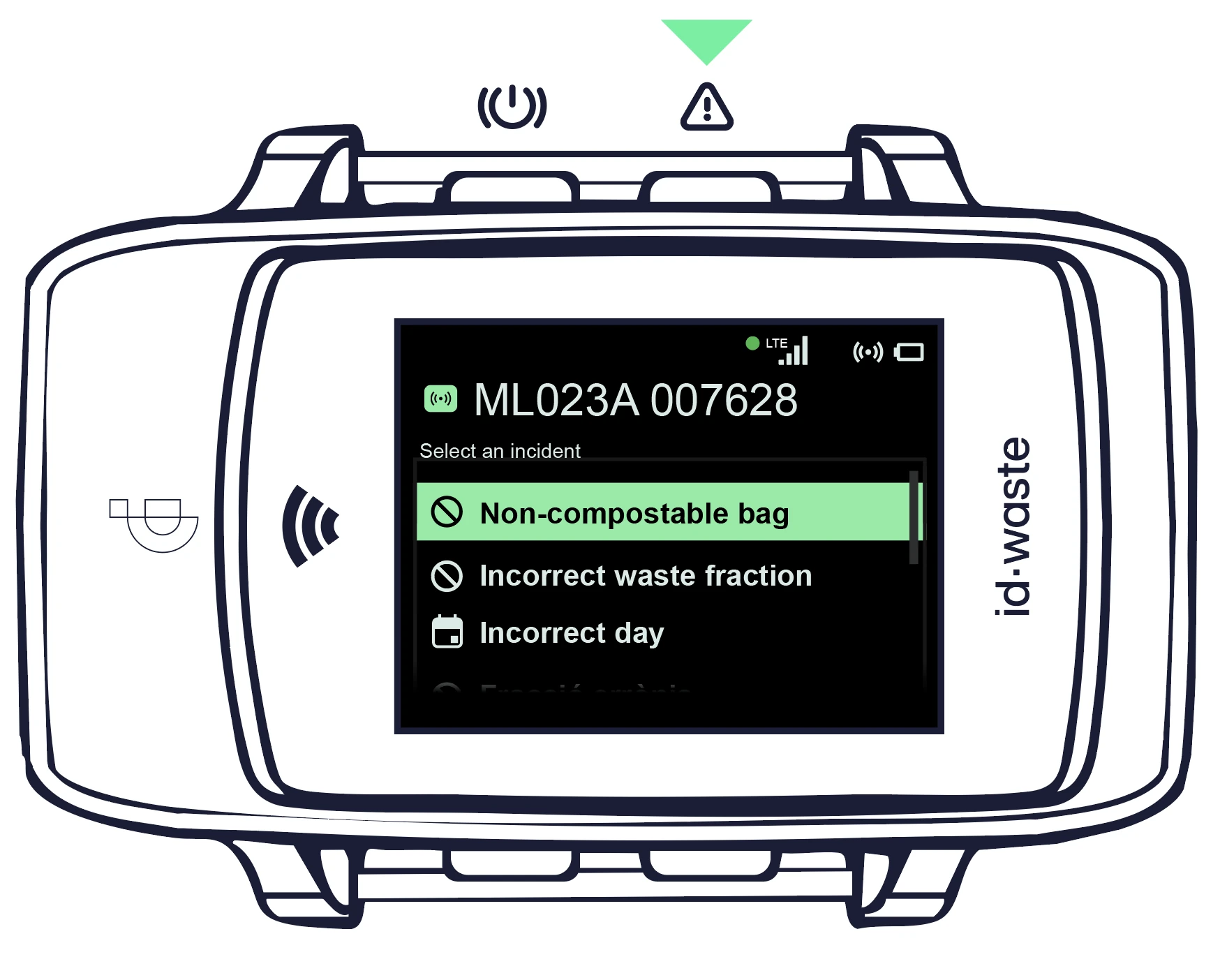
Entering geo-referenced incidents
When the user is on the main menu and presses button 2 for a few seconds (long press), the menu for entering a geo-referenced incident opens. The screen then shows a list of the available incidents.
To move the selection bar, briefly press button 3 to go up and button 4 to go down. To select an incident, press button 3 for a few seconds.
If you do not want to select an incident, press button 4 (back) for a few seconds to return to the main screen.
If an incident is selected, a confirmation message appears and the device returns to the main screen.
If the device detects no activity for one minute, it returns to the main screen.
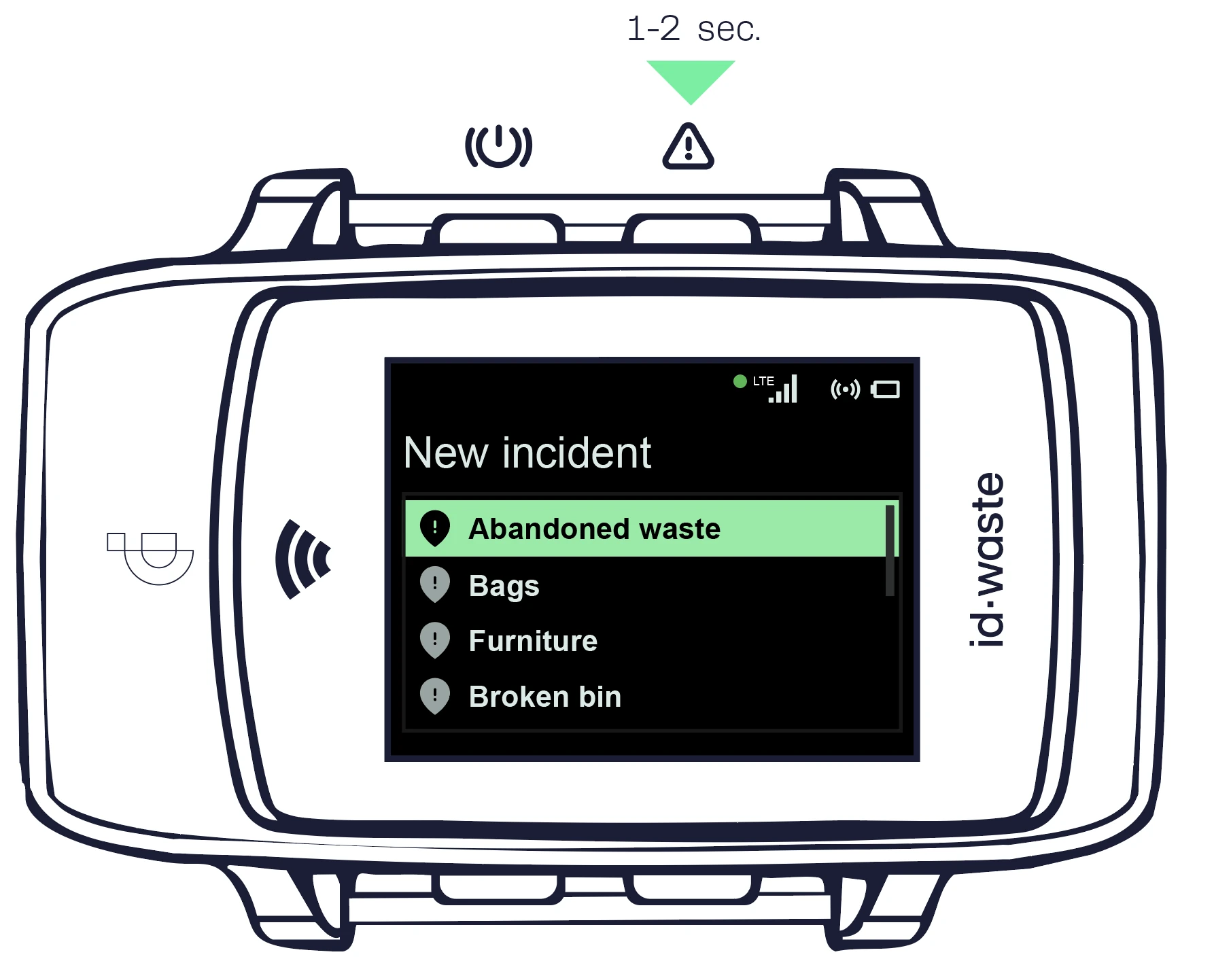
Menu screen
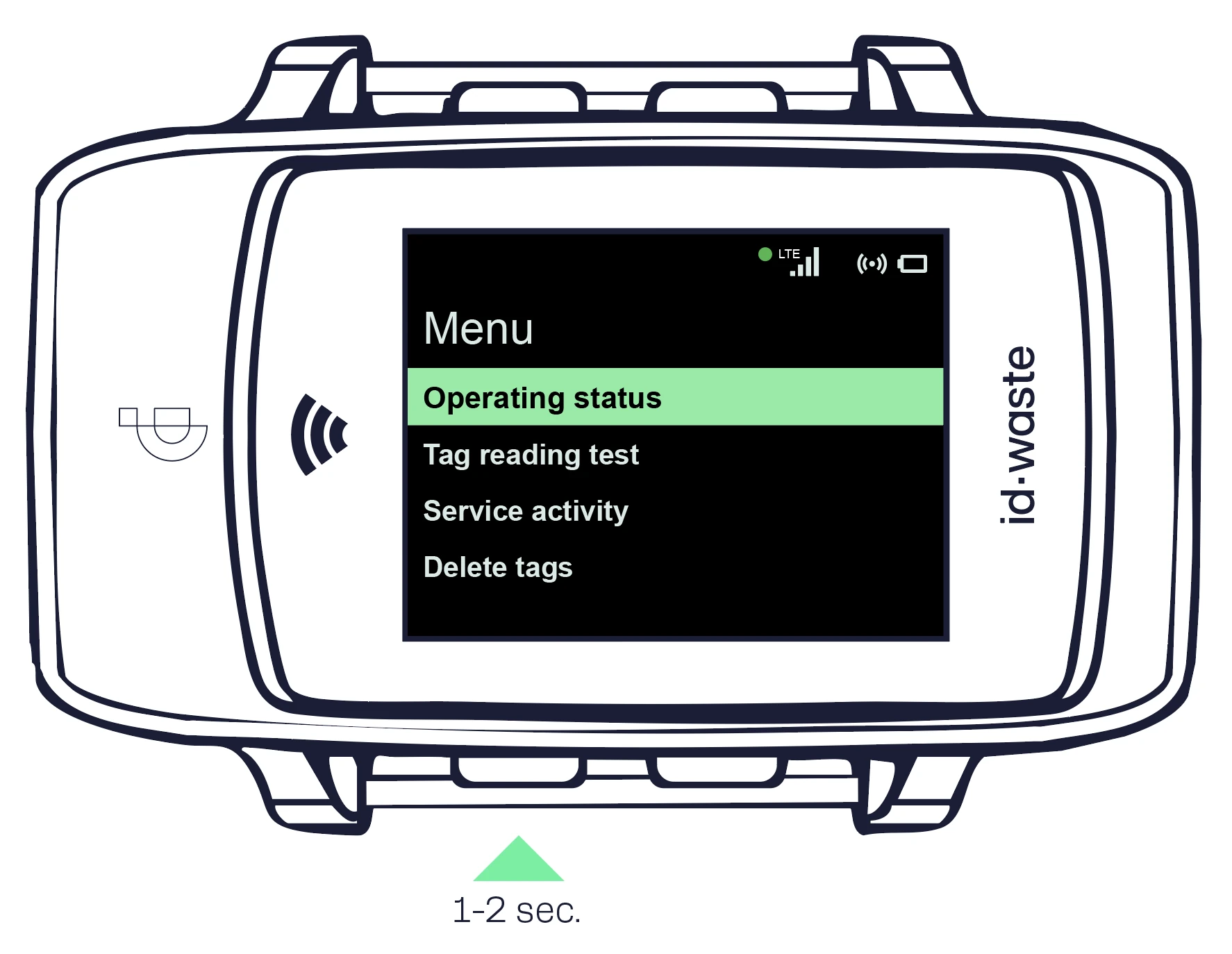
When the identification device is on the main screen and the user presses button 3 for a few seconds, a menu with several options is displayed.
To move the selection bar, briefly press button 3 to go up and button 4 to go down. To select an option, press button 3 for a few seconds. If you do not want to select an option, press button 4 (back) for a few seconds to return to the main screen.
The available options are:
- Operating status: this option opens a submenu where you can check data such as the status of LTE, GPS, RFID, NFC, etc. It also lets you force the upload of the readings taken. Depending on the option chosen, more or less information is shown.
- Tag reading test: this option lets you check that RF tag reading works correctly. Once in this menu, activate the antenna by pressing button 1. Readings taken in this mode are not counted as service readings.
- Service activity: selecting this option shows a list of all tags read during the current service.
- Delete tags: resets the counters of tags read with or without incidents. This allows tags already read during the service to be read again.